
How to add captions to TikTok videos
There are three ways to put captions on a TikTok: the auto captions inside the TikTok app, text you type yourself, or captions burned into the video before you upload. Here is how each one works, where to place the words, and which one to pick.
2 videos free to try with AI · Works in your browser · Also on iPhone and Android
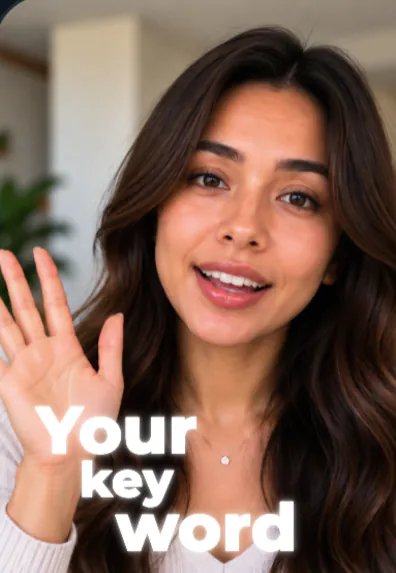
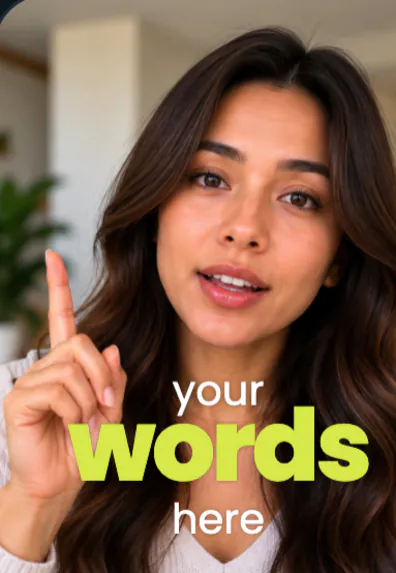
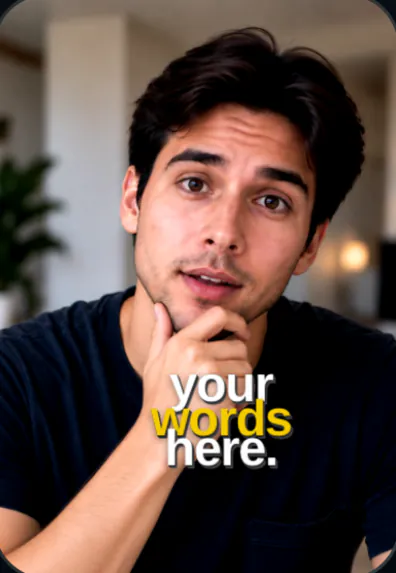
First: which “captions” do you mean?
On TikTok the word “caption” is used for two different things, and that is where most confusion starts.
- The post caption is the description you type before posting, with hashtags. It sits at the bottom of the screen under your username.
- Video captions (also called subtitles) are the words of what you say, shown on the video as you say them. This guide is about these.
Video captions matter because a large share of people scroll with the sound off or low, in public, at work or late at night. If your message lives only in your voice, those viewers swipe away before they know what the video is about. Captions also help viewers who are deaf or hard of hearing, people watching in a second language, and anyone who just reads faster than they listen.
Method 1: TikTok’s built-in auto captions
The quickest way to add captions to TikTok videos is the captions tool inside the TikTok app. It is free, it transcribes your speech for you, and it takes a couple of minutes. TikTok moves its buttons around between updates, so if a label looks slightly different on your phone, look for the same idea in the editing tools.
- Record or upload your video. Tap the + button, then record a clip or pick one from your camera roll, and go to the editing screen.
- Open the captions tool. In the editing tools on the right side of the screen, tap Captions. If you don’t see it, tap the arrow that shows more tools. TikTok listens to your audio and writes the words.
- Check every word. Tap the edit (pencil) option to read the transcript. Fix names, brand names, numbers and anything it misheard, then save.
- Style and place them. Pick a text style if the tool offers one, and drag the captions so they don’t cover your face or sit under the buttons and description at the bottom.
- Post. Tap Next, write your description and hashtags, and post. Play the video once on your profile to make sure the captions show where you expect.
Good to know: the built-in tool works best with clear speech in a supported language. It has fewer looks than a dedicated editor, and the captions stay inside TikTok, so if you also post the same clip to Reels or Shorts you will need to caption it again there.
Method 2: Type the text yourself
For very short videos, or when you only want a few key lines on screen, the Text tool is enough. Tap Text (the Aa button), type a line, pick a font and color, then tap the text to set how long it stays on screen so it appears while you say it. Repeat for each line.
This gives you full control of the wording, which is handy for a hook or a punchline, but it gets slow past ten or fifteen seconds of talking. Most creators use typed text for one or two bold lines and auto captions for the rest.
Method 3: Burn styled captions in before you upload
The third way is to caption the video in an editing app first and upload the finished file. The words become part of the picture (“burned in”), so they look exactly the same on TikTok, Instagram Reels and YouTube Shorts. Editors such as CapCut and SparkRoll can generate the captions from your audio and style them with bigger fonts, highlighted key words and animation.
If you burn captions in, don’t also switch on TikTok’s captions for the same video. Two sets of words on top of each other look messy and are hard to read.
Where to put captions on a TikTok
A TikTok is 9:16 (1080 × 1920 pixels), but not all of that frame is free. The app draws your username, description, sound name and a row of buttons on top of the video.
- Keep the bottom clear. The lowest fifth or so of the screen sits under the description and username. Captions placed there get covered.
- Stay away from the right edge. The like, comment, save and share buttons run down the right side.
- Never cover your eyes or mouth. Viewers read faces first. Chest height, or just above your head, is usually the best spot for a talking video.
- Keep the top bar in mind. The Following / For You tabs and the search icon sit at the top.
Style tips that make captions easy to read
- Show one to four words at a time. Long lines force people to read instead of watch.
- Use a bold, plain font with a dark outline or shadow so it reads on any background.
- Highlight the one word that carries the point (the price, the number, the result) in a second color.
- Match the timing to your voice. Words that appear early or late feel off even if the viewer can’t say why.
- Correct names, product names and numbers by hand. These are the words auto transcription gets wrong most often.
Mistakes to avoid
- Leaving the transcript unchecked. One wrong word in a product name looks careless and can change the meaning.
- Using tiny text. Captions have to work on a small phone at arm’s length.
- Changing font and color on every line. Pick one style and keep it for the whole video.
- Captioning a video full of pauses and “um”s. Clean the speech first (see how to remove “um” from a video) so the captions flow.
The SparkRoll way: captions that come with the edit
SparkRoll is an AI video editor for talking videos, on the web, iPhone and Android. Instead of captioning in TikTok and then repeating it for every other app, you caption once and export a vertical file you can post anywhere.
- Add your clip. SparkRoll hears every word and cuts the pauses, “um”s and retakes first.
- Pick a caption style. There are 90 styles, from plain white with an outline to templates like Word Stack Walk, where one key word goes big and colored.
- Say what to change. Type or say “make the captions bigger”, “yellow key words” or “three words at a time”. Or tap any caption and fix it by hand.
- Export 9:16 and upload to TikTok, Reels or Shorts.
Captions are written from your own words and kept off your face. You can try it on 2 videos free with AI; your first export in the iPhone or Android app is free with a small SparkRoll mark, and after that exporting needs a plan. More detail on the auto captions page, or see the full TikTok video editor.
Questions, answered
How do I add auto captions to TikTok videos?
In the TikTok editor, tap Captions in the tools on the right (it may be under the arrow for more tools). TikTok transcribes your speech; check the words, fix any mistakes, save and post.
Why can’t I find the captions option on TikTok?
Update the app first. The tool may also be hidden under the “more” arrow, and it only works when the video has speech in a language TikTok supports for captions. If it still isn’t there, add burned-in captions in an editor before you upload.
Can I add captions to a TikTok after posting?
TikTok doesn’t let you re-edit the video itself once it is posted. To add on-screen captions, caption a copy of the clip and post it again.
Are TikTok captions free?
Yes, the built-in captions tool is free. Editors that burn styled captions in have their own pricing; SparkRoll lets you try 2 videos free with AI.
How do I get word-by-word captions on TikTok?
The built-in tool shows short phrases. For word-by-word or highlighted-word captions, burn them in with an editor before you upload, then post the finished file.
Keep reading
Ready to edit by talking?
Upload a clip, say what you want, and get a finished edit. 2 videos free to try.
Get the app: App Store · Google Play