
Remove pauses, “um”s and retakes automatically
Add a talking clip. SparkRoll hears every word, finds the dead air, the filler words and the takes you restarted, and cuts them out as clean jump cuts. Then it shows you every cut.
2 videos free to try with AI · Works in your browser · Also on Android
What gets cut
- Long pauses: the gaps where you looked at your notes or lost your place.
- Filler words: “um”, “uh” and similar sounds.
- Retakes: when you start a sentence, stop and say it again, SparkRoll keeps the good take.
What stays: your words, your voice and your pacing. The cuts land between words, so the audio is not regenerated or replaced.
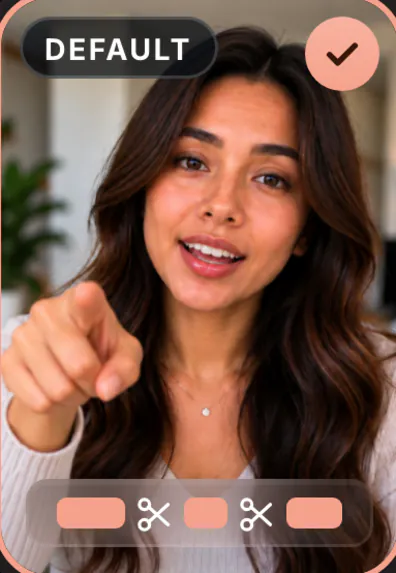
The default template, Clean up, does exactly this and nothing more: the faithful clean edit, pauses and mistakes cut, nothing added.
See every cut in Review
Automatic editing is only useful if you can trust it. Review plays the original beside your edit on one time bar. The cuts show in red, and each one is listed with Hear it and Put back, so you can bring back a pause you wanted for effect.
You can also ask in plain words: “keep the pause before the punchline”, “cut where I say wait”, “make it tighter”.
Then finish the video in the same place
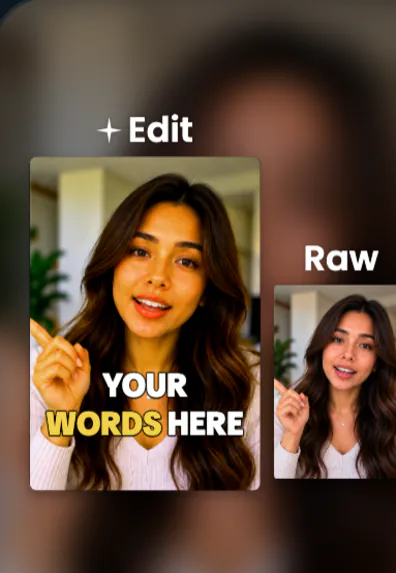
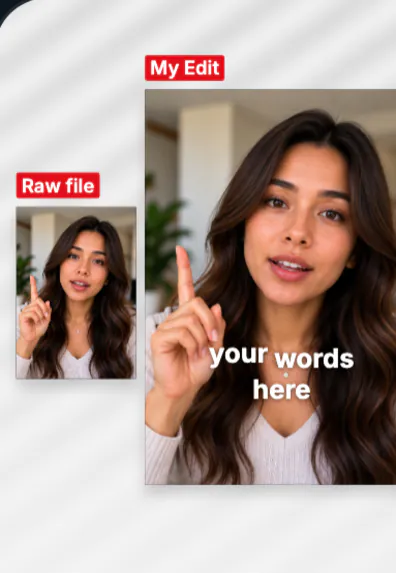
Once it is clean, keep going in the chat: captions on every word, a hook from your first sentence, music under your voice, a template for the whole look. Proof templates like Raw vs Edit Blur and Raw vs Edit Gallery even show your raw take next to the edit.
- Add your clip. MP4 or MOV, up to 10 minutes. Drop in several clips and they become one video.
- Pick a template (or keep Clean up), and add a signature effect if you want one.
- Say or type the edit. Hold to talk, or type it, in any language: “cut the pauses, add captions, make the hook bigger”.
- Fine-tune by hand if you like: tap any caption or sticker to move, resize, rotate, edit or remove it.
- Export a vertical 9:16 video for TikTok, Instagram Reels or YouTube Shorts.
Good for talking-head videos, podcast clips, coaching and course videos, product demos, vlogs and interviews: anything where you talk to camera.
Pricing
Try it before you pay: you get 2 videos free to try with AI, with 30 AI messages each. Exporting a finished video needs a plan. Coins pay for AI messages; editing by hand is free.
2 videos to try with AI, 30 AI messages each.
200 coins a week. Export your videos. Cancel any week.
1,000 coins a month. Export. Top up with coin packs.
4,000 coins a month, the stronger AI, +20% on coin packs.
Prices in US dollars, + tax where applicable. Coin packs for plan holders: 300 coins $3.99 · 1,000 coins $9.99.
Questions, answered
How do I remove pauses from a video automatically?
Add your clip to SparkRoll. The clean edit cuts long pauses, filler words and retakes on its own, and Review shows every cut.
Can I put a cut back?
Yes. Review lists every cut with Hear it and Put back. You can also ask in chat to keep a pause.
Will my voice sound edited?
The cuts are made between words. Your audio is not replaced or regenerated.
What files can I use?
MP4 or MOV, up to 10 minutes. Several clips can be added to make one video.
More ways to use SparkRoll
- AI video editorChat-based editing for talking videos
- Free AI video editor2 videos free to try with AI
- Edit video by talkingA chat video editor: say the edit
- Auto captionsCaptions on every word, automatically
- Video templatesAll 55 templates and the effects
- TikTok video editorVertical edits with a hook up front
- Instagram Reels editorTrending looks for Reels
- YouTube Shorts editorCaptions and cuts for Shorts
- Talking head video editorFor face-to-camera videos
- TikTok Shop & UGC editorProduct videos, price stickers, demos
- CapCut alternativeChat editing vs a timeline
Ready to edit by talking?
Upload a clip, say what you want, and get a finished edit. 2 videos free to try.