
Remove filler words without sounding robotic
How filler word removal works, which "um"s and "like"s to cut and which to keep, how to avoid choppy audio, and how SparkRoll cleans a talking video while you keep the final say on every cut.
2 videos free to try with AI · Works in your browser · Also on iPhone and Android

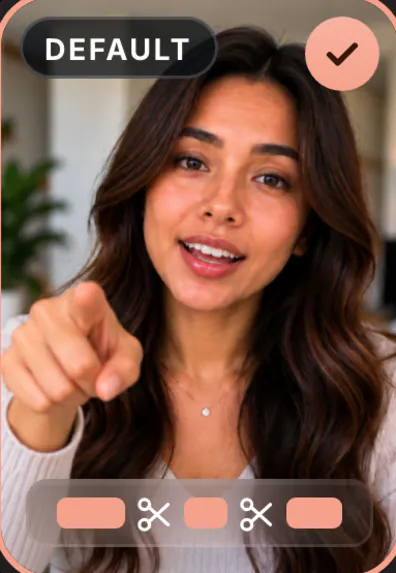
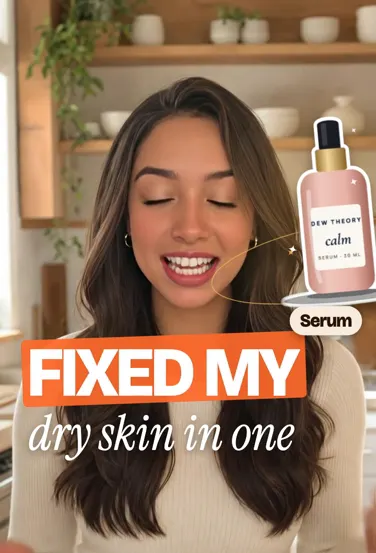
What counts as a filler word
Filler words are the sounds and words we use to hold our turn while the brain catches up: um, uh, er, and in many speakers like, you know, so, basically, right and I mean. In conversation nobody notices them. In a 30-second video, five "um"s are five moments where the viewer's thumb starts moving.
Not every one of them is filler, though. "I like this serum" uses "like" as a verb. "So that's why it works" uses "so" to connect a conclusion. A good filler word remover looks at the sentence, not just the word, and leaves those alone.
How automatic filler word removal works
The tool transcribes your speech with a time for every word, flags the filler sounds and the false starts, and cuts them out at the boundaries between words. Nothing is re-recorded or generated; the audio you keep is your own voice, just without the gaps.
The quality comes down to three things:
- Clean cut points. A cut in the middle of a breath or a syllable clicks. Cuts should sit in the tiny silence between words.
- Context. Removing "like" as a verb breaks the sentence. Removing the second half of a false start ("the price is... actually the price is twenty") should keep the complete version.
- Review. Automatic cuts are a first pass. You should be able to hear any cut and put it back.
Avoid choppy, over-edited audio
Cut every breath and pause and you get a voice that never stops for air. Viewers find it tiring and it sounds machine-made. A few ways to keep it natural:
- Choose how tight to go. A gentle pass removes the obvious "um"s; a tight pass removes almost every gap. Fast hooks suit tight; storytelling suits gentle.
- Keep the pause before a punchline. A beat of silence before a reveal is deliberate. Put it back if the tool took it.
- Put music under the voice. A low music bed smooths over small changes in room sound between cuts.
- Cover visible jumps. If your head moves between cuts, a slight zoom change or a cutaway hides it. See the jump cut editor page for more.
How to say fewer filler words in the first place
Editing them out works, but recording with fewer makes every video faster to finish. What actually helps:
- Replace "um" with a pause. Silence feels long to you and normal to the viewer. It also gives the editor a clean place to cut.
- Know your first line by heart. Most fillers come at the start, while you warm up. Memorize the opening sentence only; talk naturally after that.
- Work from three bullet points, not a script. Reading word for word sounds stiff, and losing your place in a script creates "uh"s.
- Record in short takes. One point per take, then join them. It is easier to stay fluent for 15 seconds than for three minutes.
- Don't stop for a mistake. Just say the sentence again. A good editor keeps the better take, as long as you keep rolling.
The step-by-step guide on how to remove "um" from a video walks through this with examples.
Remove filler words with SparkRoll
Add a talking clip and SparkRoll's Clean cut hears every word, then removes the pauses, "um"s and "uh"s, the asides ("wait, let me say that again") and the retakes, keeping the best take of every line. The Cut dial sets how hard it cuts: Gentle, Standard or Tight.
Review plays the original beside the edit on one time bar. Each cut is listed with Hear it and Put back, so you can restore a pause you wanted. You can also ask in plain words: "keep the pause before the punchline", "cut where I say wait", "make it tighter".
When the speech is clean, the same chat adds captions from your words, a hook, music and a template. Several editors also detect filler words, including CapCut, Premiere Pro and Descript; SparkRoll's difference is that the filler removal, the captions and the rest of the edit happen in one conversation. Note that SparkRoll edits video: to clean an audio-only file, use an audio editor. For pauses and long silences specifically, see removing pauses from video.
Pricing
Try it before you pay: you get 2 videos free to try with AI, with up to 30 AI chat messages each, and your first export in the iPhone or Android app is free with a small SparkRoll mark. After that, exporting needs a plan. Coins pay for AI messages; editing by hand is free.
2 videos to try with AI, 30 AI messages each. First export free in the iPhone and Android apps, with a small mark.
250 coins a week. Export your videos. Cancel any week.
1,000 coins a month. Export. Top up with coin packs.
3,000 coins a month, the stronger AI, +20% on coin packs.
Prices in US dollars, + tax where applicable. Coin packs for plan holders: 300 coins $3.99 · 1,000 coins $9.99.
Questions, answered
How do I remove filler words from a video for free?
In SparkRoll, add your clip and the clean edit removes filler words automatically. You get 2 videos free to try with AI, and your first export in the iPhone or Android app is free with a small SparkRoll mark. After that, exporting needs a plan.
Can it remove "like" and "you know" too?
It removes fillers by context, not by matching every instance of a word. "Like" used as filler can come out; "I like this" stays. Check the Review list and put back anything it got wrong.
Will removing filler words make my video sound choppy?
Not if the cuts sit between words and you pick the right tightness. Use Gentle for stories and Tight for fast hooks, and put back any pause you wanted.
Can I remove filler words from audio only?
SparkRoll is built for video. For an audio-only podcast file, an audio editor is the better tool. For a video podcast, SparkRoll can turn the recording into clean vertical clips.
Does it work on iPhone and Android?
Yes. SparkRoll is on the App Store and Google Play, and on the web at sparkroll.app.
Related
- Remove pauses & jump cutsAuto-cut pauses, ums and retakes
- Jump cut editorAutomatic jump cuts you can review
- Talking head video editorFor face-to-camera videos
- How to remove “um” from videoStep-by-step guide
- Auto captionsCaptions on every word, automatically
- Podcast clipsVertical clips from long episodes
- AI video editorChat-based editing for talking videos
- CapCut alternativeChat editing vs a timeline
Sound like your best take
Upload a talking clip and get it back without the ums, retakes and dead air. 2 videos free to try.