
Animated captions that move with your voice
Word-by-word pops, slams, karaoke highlights and words that sit behind you. Here is how each kind of caption animation works, when to use it, and how to keep motion from getting in the way of the message.
2 videos free to try with AI · Works in your browser · Also on iPhone and Android
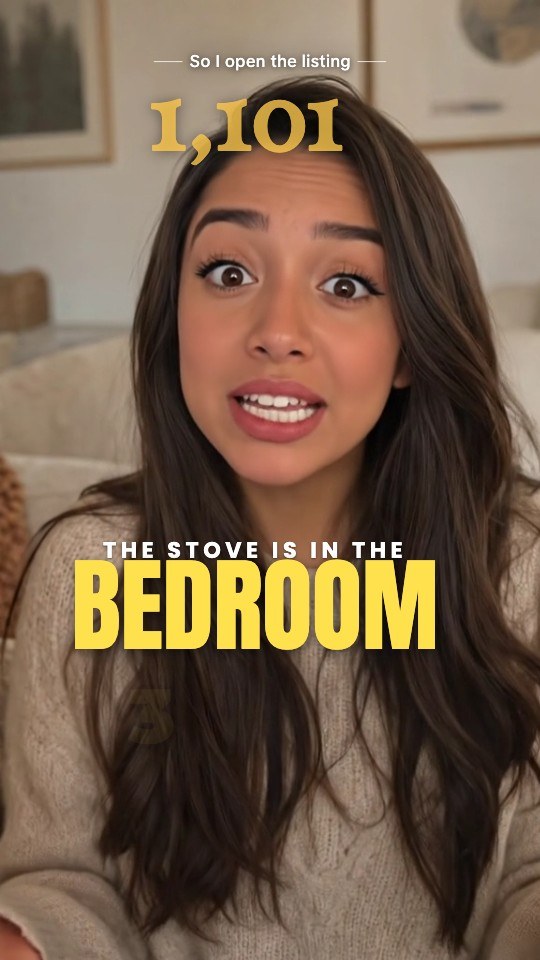

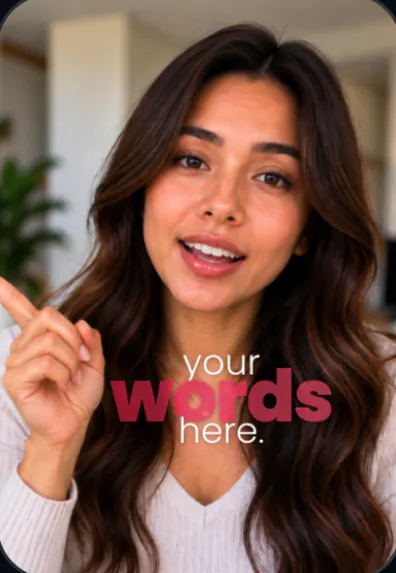
The main kinds of caption animation
- Word-by-word pop. Each word appears the moment it is spoken, often with a small scale bounce. The most common style on TikTok, because it pulls the eye along with the voice.
- Karaoke highlight. The whole line is on screen and the current word lights up. Easier to read for longer sentences, since the viewer sees what is coming.
- Slam. Words hit the screen hard, usually heavy capitals. Built for energy: hot takes, deals, countdowns.
- Stack. Phrases build up as a block of words of different sizes, with one huge key word. Good for quotable lines.
- Behind you. A big word sits behind the speaker, so the person appears in front of the text. Feels designed rather than added.
- Typewriter. Letters appear one by one. Calmer, suits storytelling and reveals.
Choose the motion for the content
Animation should match how you talk. A fast, punchy product pitch suits slams and pops. A slow story or a personal confession suits a soft fade or typewriter. A tutorial with steps needs captions that stay on screen long enough to read, so a karaoke highlight or a stacked line works better than a word that vanishes after a quarter of a second.
A simple test: mute the video and watch it. If you find yourself reading faster than the video moves, or losing the sentence because each word disappears too quickly, the animation is too aggressive for that content.
Rules that keep moving text readable
- Sync to the start of the word. A caption that lands as you begin the word feels tight. One that lands after feels laggy, even if it is only slightly late.
- Keep entrances short. The word should be readable almost immediately. Long, floaty entrances mean the viewer reads a blur.
- Animate the key word, not every word. One word per line that grows, changes color or bounces gives the eye a target. If every word bounces equally, nothing stands out.
- Leave the face alone. Motion attracts the eye. Put moving text over the face and viewers stop looking at you.
- Stay consistent. Two or three motion types in one video is plenty. A new effect on every line looks random.
Doing it in a timeline editor
In a timeline editor such as Premiere Pro or DaVinci Resolve, word-by-word animated captions usually mean templates, plugins or keyframing words yourself, and the work grows with every line. Mobile editors like CapCut include animated caption presets. Whichever tool you use, the time goes into the same places: syncing words to speech, choosing which words to emphasize, and fixing placement line by line.
The faster route for talking videos is a tool that knows the timing of every word already, because it transcribed your speech, and animates from that. It also means a fix is cheap: change a word and the animation follows, instead of re-keyframing the line.
Sound and motion together
Motion lands harder with a sound under it. A soft pop on a key word, a whoosh as a title enters, or a click on each list item makes the animation feel deliberate. Use sound effects sparingly, on the two or three moments that matter, and keep them under your voice so they never mask a word. Pair this with auto captions for the rest of the video and the key moments stand out against a calm base.
How SparkRoll animates captions
SparkRoll times every caption to the word you say and animates it in the style of the template you pick. A few examples from the template gallery:
- Impact: heavy caps, yellow key words, each word slams in.
- Fly-In: big stacked words fly in around you.
- Glow Walk: glowing words behind you as you walk.
- Word Stack Walk: every phrase as a word stack around your head, with one huge colored word.
- Journey: gold headlines, words as you say them.
Effects like Word behind you (one of the effects on the TikTok video editor page) place a huge word behind your body on a moment you choose. There are 90 caption styles and 300 effects in all. To adjust, ask: "make the key word pop bigger", "calmer captions", "three words at a time", or "put the word 'free' behind me". Every caption also stays editable by hand. Not sure which look fits? The caption styles page groups them by content type.
Pricing
Try it before you pay: you get 2 videos free to try with AI, with up to 30 AI chat messages each, and your first export in the iPhone or Android app is free with a small SparkRoll mark. After that, exporting needs a plan. Coins pay for AI messages; editing by hand is free.
2 videos to try with AI, 30 AI messages each. First export free in the iPhone and Android apps, with a small mark.
250 coins a week. Export your videos. Cancel any week.
1,000 coins a month. Export. Top up with coin packs.
3,000 coins a month, the stronger AI, +20% on coin packs.
Prices in US dollars, + tax where applicable. Coin packs for plan holders: 300 coins $3.99 · 1,000 coins $9.99.
Questions, answered
How do I make animated captions for free?
SparkRoll gives you 2 videos free to try with AI, and your first export in the iPhone or Android app is free with a small SparkRoll mark. After that, exporting needs a plan.
How do I add word-by-word captions?
Use a tool that times every word to your voice. In SparkRoll, ask for captions or pick a template; they appear word by word as you speak. Say "one word at a time" or "three words at a time" to change the pace.
Do animated captions work for Instagram Reels?
Yes. SparkRoll exports a vertical 9:16 video with the animation burned in, so it plays the same on Reels, TikTok and YouTube Shorts.
Can I change the animation after it is applied?
Yes. Switch to another template or caption style, or ask for a change in the chat. Your words and timing stay the same.
Does caption motion make a video harder to read?
They can if every word moves a lot. Animate the key words, keep entrances quick and keep text off the face, and they make the video easier to follow.
Related
- Caption styles90 looks and how to pick one
- Add captions to videoCaptions timed to every word
- Auto captionsCaptions on every word, automatically
- Video templatesTemplates that set the whole look
- AI caption generatorOn-video captions and the post caption
- TikTok video editorVertical edits with a hook up front
- Instagram Reels editorTrending looks for Reels
- CapCut alternativeChat editing vs a timeline
Captions that land on the beat
Pick a look, say what to change, and every word moves with your voice. 2 videos free to try.