
Add captions to video, timed to every word
A practical guide to adding captions to a talking video: which method to use, how to make them readable on a phone, the mistakes that cost views, and how SparkRoll writes them from your own words in one step.
2 videos free to try with AI · Works in your browser · Also on iPhone and Android
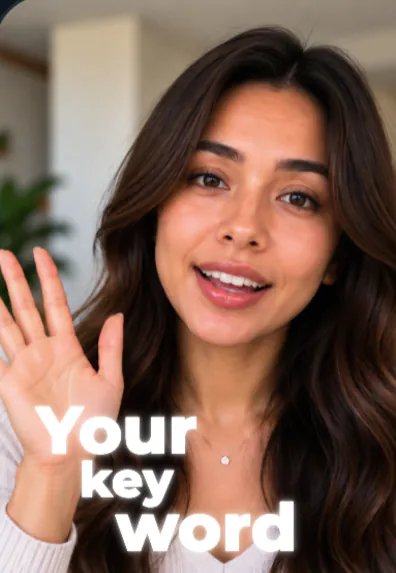
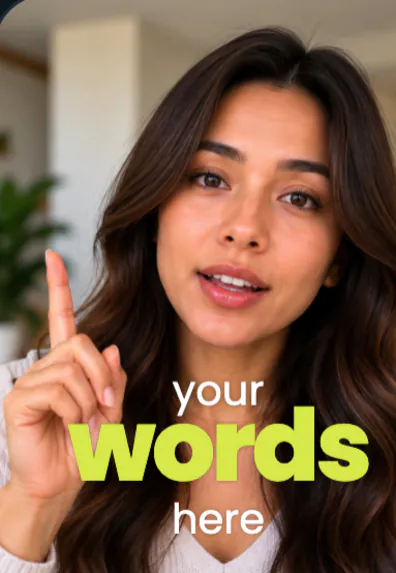

Why every talking video needs captions
A large share of people scroll short video with the sound off: on a train, in an office, late at night next to someone sleeping. If the first words of your video are only in the audio, those viewers never hear your point and swipe away. Captions put the message on screen so the video works muted.
They help in three other ways too. People who are deaf or hard of hearing can follow you. Viewers watching in a second language can read along at their own pace. And when the words appear as you say them, the eye has something to track, which keeps attention on the video for longer than a static face does.
Three ways to add captions to a video
1. The app you post to
TikTok, Instagram and YouTube can all generate captions from your audio. It costs nothing and takes one tap. The trade-off is control: you get the platform's look, few style choices, and you have to redo it on every platform you post to. Viewers can also turn them off.
2. An editor that burns them in
A caption editor writes the words into the picture itself (often called "open" or burned-in captions). They look the same everywhere you post, you choose the font and colors, and nobody has to switch them on. This is the standard for TikTok, Reels and Shorts, and it is what SparkRoll does.
3. Typing them yourself
For a 15-second clip you can type a few text boxes by hand. Past that it becomes slow, because each line has to be timed to the word it matches. A transcript-based tool saves most of that work and leaves you only the proofreading.
How to add captions to a video, step by step
- Start with clean audio. Captions are only as good as the speech recognition behind them. Film close to the mic, away from loud fans or traffic, and leave music out of the recording; add it in the edit instead.
- Cut before you caption. Remove pauses and retakes first. If you caption a raw take, every cut afterwards can leave orphaned words on screen.
- Generate the captions from your speech. Let the tool write them from the audio and time each word to your voice.
- Proofread names, brands and numbers. These are the words speech recognition misses most, and the ones viewers notice. "$29" heard as "29 dollars" is fine; a misspelled product name is not.
- Keep lines short. Two to five words per line reads well on a phone. Long sentences across the whole screen make people read instead of watch.
- Place them where nothing covers them. Keep clear of the bottom strip where the caption text and buttons of TikTok and Reels sit, and keep them off your face.
- Export and check on your phone. Watch it once muted at full screen. If you can follow every point without sound, the captions are done.
Mistakes that make captions hurt instead of help
- Covering the face. Viewers look at eyes and mouth first. Text across them makes the video feel cluttered and hides your expression.
- Highlighting everything. If every word is yellow, nothing stands out. Pick the words that carry the point: the product, the number, the result.
- Low contrast. Thin white text on a bright window disappears. Use a heavier weight, an outline, a shadow or a box behind the words.
- Captions that lag. Words that appear half a second after you say them feel out of sync. Word-level timing fixes this.
- Leaving in the "um"s. Seeing "um, so, um" written out is worse than hearing it. Clean the speech first; see removing filler words.
How SparkRoll adds captions to your video
SparkRoll is an AI video editor for talking videos. It hears every word you say, cuts the pauses and retakes, then writes captions from your own words and times each one to your voice. Ask for captions in the chat ("add captions") or pick one of the templates and they come with it.
There are 90 caption styles, from clean sentence case to heavy word stacks, and every style keeps text off your face. Key words can be picked out in a color or size of their own. To change anything, say it: "make the captions bigger", "three words at a time", "yellow key words". Or tap any caption to fix a word, move it or resize it by hand.
- Add captions
- Make the captions smaller and white
- Highlight the price
- Move the captions up
- Fix the spelling of my brand name
You can add captions to video on iPhone, on Android, or online in any desktop browser at sparkroll.app. The finished video exports as a vertical 9:16 file for TikTok, Reels and Shorts, with the captions burned in so they look the same on every platform. Posting to TikTok or Reels specifically? The step-by-step guides for TikTok captions and Reels captions cover each app's own settings.
Pricing
Try it before you pay: you get 2 videos free to try with AI, with up to 30 AI chat messages each, and your first export in the iPhone or Android app is free with a small SparkRoll mark. After that, exporting needs a plan. Coins pay for AI messages; editing by hand is free.
2 videos to try with AI, 30 AI messages each. First export free in the iPhone and Android apps, with a small mark.
250 coins a week. Export your videos. Cancel any week.
1,000 coins a month. Export. Top up with coin packs.
3,000 coins a month, the stronger AI, +20% on coin packs.
Prices in US dollars, + tax where applicable. Coin packs for plan holders: 300 coins $3.99 · 1,000 coins $9.99.
Questions, answered
How do I add captions to a video for free?
The apps you post to (TikTok, Instagram, YouTube) can generate basic captions at no cost. For burned-in captions with your own style, SparkRoll gives you 2 videos free to try with AI, and your first export in the iPhone or Android app is free with a small SparkRoll mark. After that, exporting needs a plan.
Can I add captions to a video on my iPhone?
Yes. SparkRoll is on the App Store for iPhone. Add your clip, ask for captions or pick a template, check the words and export a vertical video to Photos or straight to your apps.
How do I add captions to a video online?
Open sparkroll.app in a desktop or phone browser, sign in, add your clip and ask for captions. Nothing to install. Your video is cut in the browser; only the sound goes to SparkRoll so it can hear the words.
Can AI add captions to my video?
Yes. Speech recognition writes the words and times each one to your voice. You should still read them once, especially names, brands and numbers.
Will the captions cover my face?
Not in SparkRoll. Every caption style places text around you, never over your face. If you want them somewhere else, say "move the captions up" or drag them by hand.
How do I fix a wrong word in the captions?
Tap the caption and type the right word. Editing by hand is free.
Related
- Auto captionsCaptions on every word, automatically
- Caption styles90 looks and how to pick one
- Animated captionsWord-by-word motion that stays readable
- AI caption generatorOn-video captions and the post caption
- Add subtitles to videoBurned-in subtitles for short video
- Remove filler wordsCut the ums, uhs and false starts
- Captions on TikTok videosStep-by-step guide
- Video templatesTemplates that set the whole look
Add captions to your next video
Upload a talking clip, ask for captions, and check every word before you post. 2 videos free to try.