
Add subtitles to video without the busywork
Subtitles, captions, SRT files, burned in or switchable: what each one means, which one your video needs, and the quickest way to add subtitles to a talking video for TikTok, Reels and Shorts.
2 videos free to try with AI · Works in your browser · Also on iPhone and Android
Subtitles or captions: is there a difference?
Strictly speaking, subtitles are the spoken words written out for viewers who can hear the audio but want or need to read along, often in another language. Captions also describe sounds that matter, like "[music]" or "[door slams]", for viewers who cannot hear. On social media the two words are used interchangeably, and most people searching for one mean text that follows what you say.
The more useful distinction is how the text is delivered:
- Open (burned-in) subtitles are part of the picture. Everyone sees them, on every app, and they can be styled freely. Short vertical video almost always uses these.
- Closed subtitles live in a separate file (usually SRT or VTT) that the player shows on top. Viewers can switch them off or pick a language. Long-form YouTube videos and courses often use these.
Which one does your video need?
Ask where the video will be watched. For TikTok, Instagram Reels, YouTube Shorts and Facebook Reels, burn them in: those feeds autoplay muted, and a styled subtitle is part of the look that stops the scroll. For a 20-minute YouTube tutorial or a course module, a closed subtitle file is usually better, because viewers can turn it off and search engines can read the text.
Many creators do both: a long video with a subtitle file, and short vertical clips cut from it with burned-in subtitles. If you work that way, SparkRoll's long video to Shorts tool turns the long recording into vertical clips with subtitles and a hook.
How to add subtitles to a video
- Transcribe the speech. Use a tool that turns your audio into text with a time for every word. Typing a transcript by hand works for very short clips only.
- Proofread the transcript. Fix names, product names, slang and numbers. Read it against the audio once; it is the step most people skip and the one viewers notice.
- Break it into lines. For vertical video, short groups of two to five words. For widescreen, up to two lines of roughly 40 characters, split at natural pauses rather than mid-phrase.
- Check the timing. Each line should appear as you start saying it and leave as you finish. Lines that linger over the next sentence confuse the reader.
- Choose burned-in or file. Burn them in for social feeds; export or upload a subtitle file where the player supports one.
- Watch it muted. If the video makes complete sense with the sound off, the subtitles work.
Readability rules for subtitles on a phone
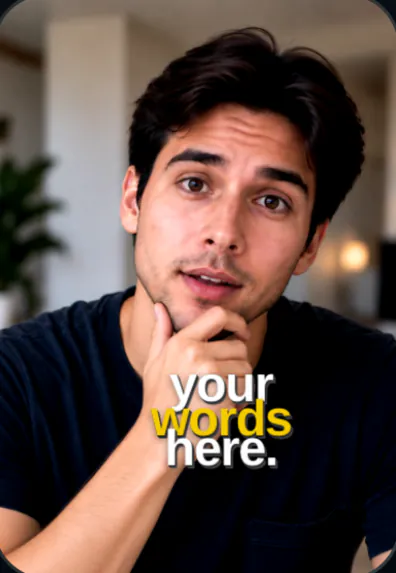
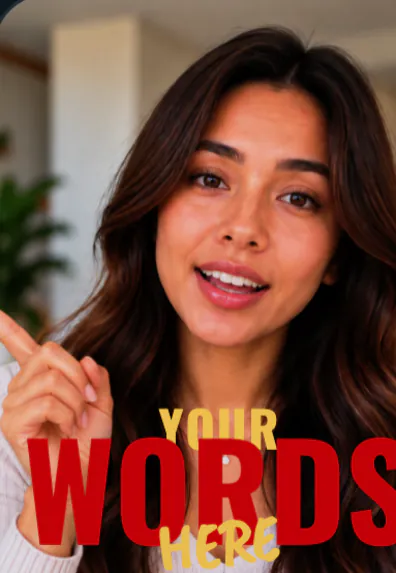
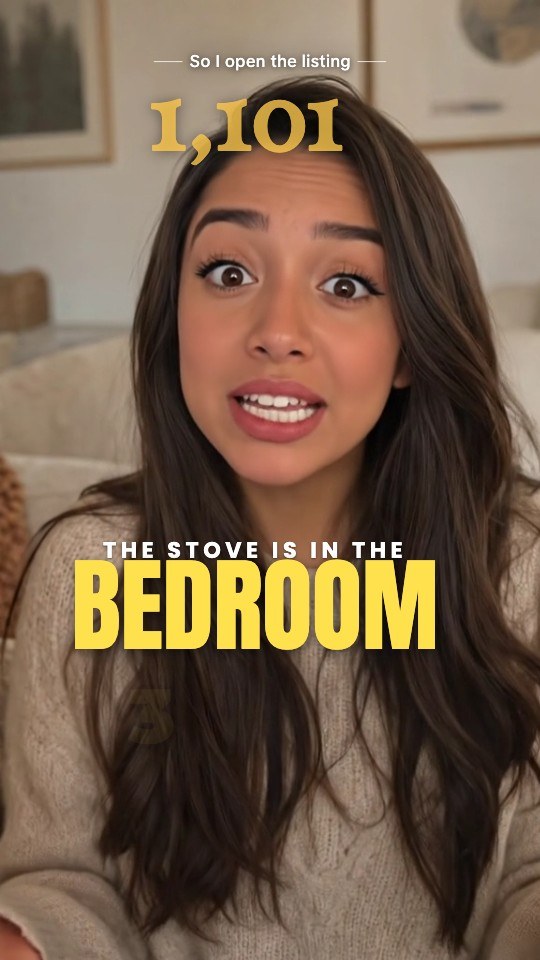
A phone screen is small and the viewer is moving their thumb, so subtitles have to be read in a glance. Use a bold sans serif or a strong serif at a size you can read at arm's length. Give the text contrast with an outline, a soft shadow or a box. Keep the bottom of the screen clear, since TikTok and Reels put the account name, caption text and buttons there. And keep subtitles off the face: viewers read faces before text, and covering a mouth makes the video harder to follow, not easier.
Pick one or two words per sentence to stand out, such as a price, a number or the result. That gives a skimming viewer the whole point in a few words. The caption styles guide shows how different looks handle this.
Add subtitles to video with SparkRoll
SparkRoll writes subtitles from the words you speak, times each word to your voice and burns them into a vertical video. It first cleans the speech (pauses, filler words and retakes come out), so the subtitles match the finished cut instead of the raw take. (Why that order matters is covered on the remove filler words page.)
- Add your clip on the web at sparkroll.app, on iPhone or on Android. Drop in several clips and they become one video.
- Ask for subtitles in the chat, or pick a template; each template comes with its own subtitle style.
- Read them and fix any word by tapping it. Or ask: "make the subtitles smaller", "two lines at a time", "move them under my chin".
- Export a 9:16 video for TikTok, Reels or Shorts and post it.
A note on languages: subtitles are written from what you say, in the language you speak. SparkRoll does not translate or dub videos, so if you need subtitles in a second language, you will need a translation tool for that part.
Pricing
Try it before you pay: you get 2 videos free to try with AI, with up to 30 AI chat messages each, and your first export in the iPhone or Android app is free with a small SparkRoll mark. After that, exporting needs a plan. Coins pay for AI messages; editing by hand is free.
2 videos to try with AI, 30 AI messages each. First export free in the iPhone and Android apps, with a small mark.
250 coins a week. Export your videos. Cancel any week.
1,000 coins a month. Export. Top up with coin packs.
3,000 coins a month, the stronger AI, +20% on coin packs.
Prices in US dollars, + tax where applicable. Coin packs for plan holders: 300 coins $3.99 · 1,000 coins $9.99.
Questions, answered
How do I add subtitles to a video online for free?
In SparkRoll, open sparkroll.app in your browser, add a clip and ask for subtitles. You get 2 videos free to try with AI, and your first export in the iPhone or Android app is free with a small SparkRoll mark; after that, exporting needs a plan. The platforms you post to also offer basic auto subtitles at no cost.
What is the difference between subtitles and captions?
Subtitles write out the dialogue; captions also describe important sounds for viewers who cannot hear. On TikTok, Reels and Shorts the two words are used for the same thing: text that follows your speech.
Should subtitles be burned in or uploaded as a file?
Burn them in for short vertical video, where feeds autoplay muted and the subtitle style is part of the look. Use a separate subtitle file for long-form players that support switching them on and off.
How do I add subtitles to a video on iPhone?
Use an editor app that writes subtitles from your speech. With SparkRoll on iPhone, add your clip, ask for subtitles, check the words and export. Your video is edited on the iPhone itself.
Can SparkRoll translate subtitles into another language?
No. SparkRoll writes subtitles in the language you speak and does not translate or dub. Use a dedicated translation tool if you need another language.
Related
- Add captions to videoCaptions timed to every word
- Auto captionsCaptions on every word, automatically
- Caption styles90 looks and how to pick one
- Long video to ShortsFind the best moments, cut them vertical
- YouTube Shorts editorCaptions and cuts for Shorts
- Talking head video editorFor face-to-camera videos
- AI caption generatorOn-video captions and the post caption
- Video templatesTemplates that set the whole look
Subtitles that match the final cut
Clean the speech, add subtitles from your own words and export for every feed. 2 videos free to try.