
The jump cut editor that cuts for you
Jump cuts are how talking videos move fast. Here is how to edit them well, by hand or automatically, and how SparkRoll makes every cut for you and shows you each one.
2 videos free to try with AI · Works in your browser · Also on iPhone and Android
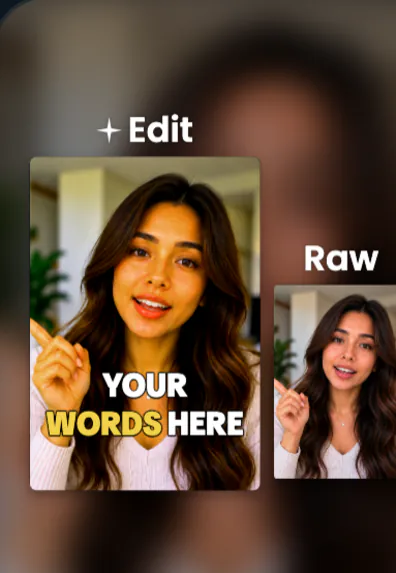
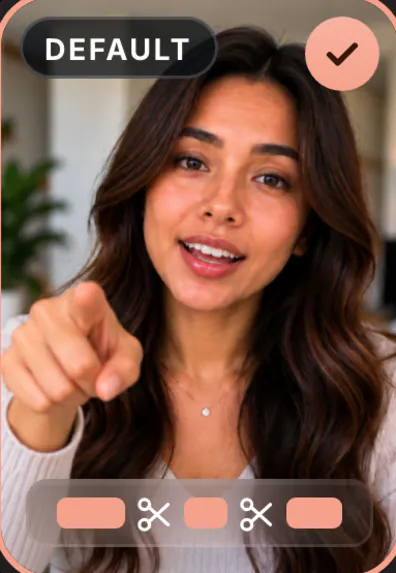
Jump cuts in one paragraph
A jump cut joins two parts of the same shot with a piece taken out of the middle. Because the camera does not move, the person seems to "jump" slightly between frames. In film it was once a deliberate jolt; on TikTok, Reels and YouTube it is simply how talking videos remove pauses, mistakes and dead air. Viewers are so used to it that a clean jump cut reads as fast, not as an error. The guide what is a jump cut covers the history and the difference from hard cuts and match cuts.
Editing jump cuts by hand
In a timeline editor, the classic workflow is: play the clip, find a gap or mistake, split before and after it, delete the piece, close the gap, repeat. For a two-minute talking clip that can be fifty or more cuts. It works, and you control every frame, but it is the most repetitive part of editing short video.
If you do it by hand, these habits make the result look intentional:
- Cut on the silence, not the syllable. Zoom into the waveform and cut in the gap between words.
- Keep the better take. When you said a line twice, keep the one with more energy, not just the last.
- Hide big jumps with scale. Alternate between your normal frame and a slight punch-in so a head movement reads as a new angle.
- Keep the rhythm varied. Cutting every gap to the same length feels mechanical. Leave a breath after a big point.
- Watch it at full speed. Jumps that look jarring frame by frame often disappear at normal playback.
What an automatic jump cut editor does
An automatic jump cut editor reads your speech, not just the volume. Simple silence removers cut wherever the audio drops below a level, which also cuts quiet words and leaves loud mistakes in. A transcript-based editor knows which words you said, so it can tell a pause from a soft-spoken word, spot a sentence you started twice, and keep the complete version.
| Silence remover | Transcript-based jump cuts | |
|---|---|---|
| Long pauses | Cut | Cut |
| "Um", "uh" | Usually kept (they are not silent) | Cut |
| Retakes and false starts | Kept | Best take kept, others cut |
| Quiet words | Sometimes cut by mistake | Kept |
| Dramatic pause | Cut | Can be kept on request |
Make jump cuts look smooth
- Frame for it. Shoot a little wider than you need. That leaves room to punch in on alternate cuts without losing quality.
- Sit still between points. Small head turns make jumps visible. Look at the lens, finish the sentence, then move.
- Use cutaways. Cover a rough cut with a photo, a product shot or a screen. See B-roll for talking videos.
- Captions bridge the gap. When the words keep flowing on screen, viewers follow the sentence instead of noticing the cut.
Pace is a choice, not a rule. A tight edit with almost no air suits a hook or a deal; a story or an emotional moment needs room to land. Many good edits use both: tight through the setup, looser at the point that matters. If viewers drop off in the middle of your videos, try loosening the cuts there before adding more effects.
Jump cuts in SparkRoll
Add a talking clip and SparkRoll makes the jump cuts in one step: pauses, filler words, asides and retakes come out, and the best take of every line stays. Drop in several takes of a line and it picks the best one. The Cut dial sets the pace: Gentle keeps more breathing room, Standard is the default, Tight cuts nearly every gap.
Review shows the original beside the edit on one time bar, with every cut in red. Each one has Hear it and Put back. Or just ask: "keep the pause before the punchline", "cut where I say wait", "make it tighter". Punch-in zooms help hide a visible jump, and captions keep the sentence flowing over each cut.
- Make it tighter
- Put back the pause before the reveal
- Cut the first sentence
- Zoom in on the key line
It runs on the web at sparkroll.app, on iPhone and on Android, and the result exports as a vertical video for TikTok, Reels and Shorts. For the full feature, see removing pauses and jump cuts.
Pricing
Try it before you pay: you get 2 videos free to try with AI, with up to 30 AI chat messages each, and your first export in the iPhone or Android app is free with a small SparkRoll mark. After that, exporting needs a plan. Coins pay for AI messages; editing by hand is free.
2 videos to try with AI, 30 AI messages each. First export free in the iPhone and Android apps, with a small mark.
250 coins a week. Export your videos. Cancel any week.
1,000 coins a month. Export. Top up with coin packs.
3,000 coins a month, the stronger AI, +20% on coin packs.
Prices in US dollars, + tax where applicable. Coin packs for plan holders: 300 coins $3.99 · 1,000 coins $9.99.
Questions, answered
What is a jump cut editor?
A tool that removes the pauses, mistakes and retakes from a talking clip and joins what is left with jump cuts. Automatic ones read your speech so they know which parts to keep.
Is there a free auto jump cut tool?
SparkRoll gives you 2 videos free to try with AI, and your first export in the iPhone or Android app is free with a small SparkRoll mark. After that, exporting needs a plan.
What is the difference between a jump cut and a hard cut?
A hard cut is any instant switch from one shot to another. A jump cut is a hard cut within the same shot, with time taken out, so the subject appears to jump.
How do I hide jump cuts?
Alternate a slight punch-in zoom, cover rough cuts with B-roll, keep your head still between points, and let captions carry the sentence across the cut.
Can I undo a cut the editor made?
Yes. In SparkRoll's Review, every cut has Put back. You can also ask in the chat to keep a specific pause.
Related
- Remove pauses & jump cutsAuto-cut pauses, ums and retakes
- Remove filler wordsCut the ums, uhs and false starts
- What is a jump cut?The edit, explained with examples
- B-roll for talking videosCut to your own photos as you speak
- Talking head video editorFor face-to-camera videos
- YouTube Shorts editorCaptions and cuts for Shorts
- AI video editorChat-based editing for talking videos
- Video templatesTemplates that set the whole look
Let the cuts make themselves
Upload a talking clip, pick how tight, and review every cut. 2 videos free to try.