
B-roll for talking videos, from your own camera roll
B-roll is what keeps a talking video from being one long shot of a face. Here is what to film, where to cut it in, the mistakes that make it feel random, and how SparkRoll places your own pictures as you mention them.
2 videos free to try with AI · Works in your browser · Also on iPhone and Android
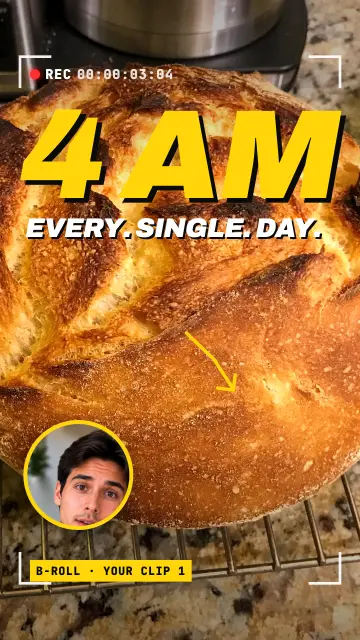
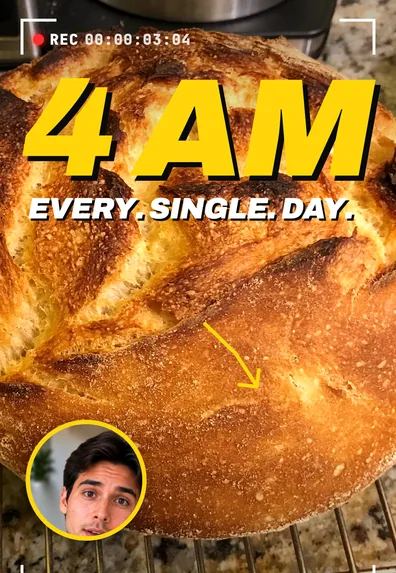
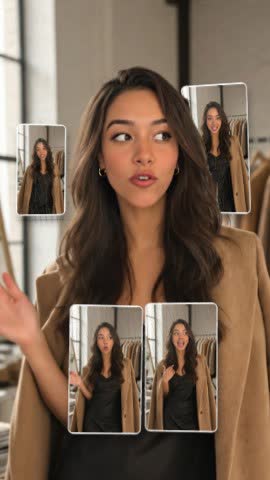
A-roll and B-roll in short video
A-roll is the main footage: you, talking to the camera. B-roll is everything you cut to while your voice keeps going: the product, the place, the screen, the before photo, your hands doing the thing you describe. In short video, B-roll does three jobs. It shows what you are talking about, it resets attention with a new image every few seconds, and it hides jump cuts in the A-roll.
For the full definition, with film examples, see what is B-roll. This page is about using it in a talking video.
B-roll shot list by kind of video
| Video | B-roll worth filming |
|---|---|
| Product review or TikTok Shop | Unboxing, the product in your hand, close-up of texture or label, the result in use |
| Tutorial or how-to | Each step done by hand, the screen you are working on, the finished result |
| Food | Ingredients laid out, the pan, the plate, the first bite |
| Real estate | Front of the home, each room you mention, the view, the street |
| Coaching or business | Your workspace, notes, a client message (with permission), the before and after |
| Story or vlog | The places in the story, old photos, small details from the day |
How to shoot B-roll on a phone
- Hold each shot for five seconds or more. You will use one or two, but the extra gives room to choose.
- Move slowly or not at all. A slow push toward the subject, or a locked-off frame. Quick pans blur.
- Shoot vertical. If the video is 9:16, film B-roll in 9:16 so nothing important is cropped.
- Get three distances. Wide (where you are), medium (the thing), close (the detail).
- Photos count. A sharp still from your camera roll works as B-roll, especially with a slight zoom or a frame around it.
Where to cut B-roll into the edit
- On the word. Show the product when you name it, the room when you say "kitchen". B-roll that arrives late feels disconnected.
- Keep your voice running. Cut the picture, not the sound. Your sentence continues over the B-roll and you come back mid-thought.
- Short holds. In fast short video, one to three seconds per cutaway is typical. Longer if the viewer needs to read or see a detail.
- Cover the rough cuts. Put B-roll over a jump that looks harsh. See the jump cut editor page.
- Don't bury the face. Come back to you for the hook, the key point and the call to action; people trust a face.
Common B-roll mistakes
The usual ones: generic stock clips that could be in anyone's video, B-roll that has nothing to do with the sentence over it, cutaways so frequent that the speaker barely appears, and clips with a different color or orientation from the A-roll. Your own footage, even if it is less polished, almost always beats stock, because it shows the real thing.
One more: B-roll with its own loud audio. If the clip you cut to has wind, music or someone talking, mute it or keep it very low so your voice stays clear. And check orientation: a horizontal clip dropped into a vertical video either shows black bars or gets cropped hard, so film for the format you post in.
Add B-roll with SparkRoll
SparkRoll uses your own pictures as B-roll. Add photos from your camera roll and it cuts them in where you mention them, timed to your words. It never adds stock or sample pictures to your edit. Pictures can appear full screen, floating beside you, in a corner window, as a carousel or as a print, and you can switch the look by asking: "show the photo full screen", "put the picture next to me".
Templates built around B-roll do the layout for you: B-roll Story uses a bold italic title with your pictures cut in where you mention them, and Storyteller shows your photos as prints with key words in pink. Find them in the template gallery. Drop in several clips and they become one video, so you can also mix in short video clips you filmed.
B-roll sits on top of the rest of the edit: the clean cut, captions, a hook and music. It is especially useful for TikTok Shop and UGC videos, where showing the product matters as much as talking about it.
Pricing
Try it before you pay: you get 2 videos free to try with AI, with up to 30 AI chat messages each, and your first export in the iPhone or Android app is free with a small SparkRoll mark. After that, exporting needs a plan. Coins pay for AI messages; editing by hand is free.
2 videos to try with AI, 30 AI messages each. First export free in the iPhone and Android apps, with a small mark.
250 coins a week. Export your videos. Cancel any week.
1,000 coins a month. Export. Top up with coin packs.
3,000 coins a month, the stronger AI, +20% on coin packs.
Prices in US dollars, + tax where applicable. Coin packs for plan holders: 300 coins $3.99 · 1,000 coins $9.99.
Questions, answered
What does B-roll mean?
B-roll is the footage you cut to while the main speaker keeps talking: the product, the place, the screen or any detail that shows what is being said.
Where can I get B-roll footage?
Film it yourself, using the shot list above, or use photos from your own camera roll. Licensed stock footage is an option, but your own shots usually look more believable.
How long should a B-roll clip be?
In short vertical video, one to three seconds per cutaway is typical. Hold longer only when the viewer needs time to see a detail or read text.
Does SparkRoll add stock B-roll or AI-generated clips?
No. SparkRoll uses only your own pictures and clips. It does not add stock or AI-generated B-roll to your video.
Can I add B-roll on my phone?
Yes. SparkRoll is on iPhone and Android, and on the web at sparkroll.app. Add your talking clip and your photos, and it places them as you mention them.
Related
- What is B-roll?A-roll vs B-roll, explained
- Jump cut editorAutomatic jump cuts you can review
- TikTok Shop & UGC editorProduct videos, price stickers, demos
- UGC video editorEdits for creator ads
- Talking head video editorFor face-to-camera videos
- Video templatesTemplates that set the whole look
- Edit video with AISay the edit, keep your footage
- AI video editorChat-based editing for talking videos
Show what you are talking about
Upload your clip and your photos; SparkRoll cuts them in on the word. 2 videos free to try.