
Edit video with AI, keep your own footage
"Edit video with AI" can mean three very different things. Here is what each one does, how to write prompts that get the edit you want, what to always check, and how SparkRoll edits a talking video from a sentence.
2 videos free to try with AI · Works in your browser · Also on iPhone and Android
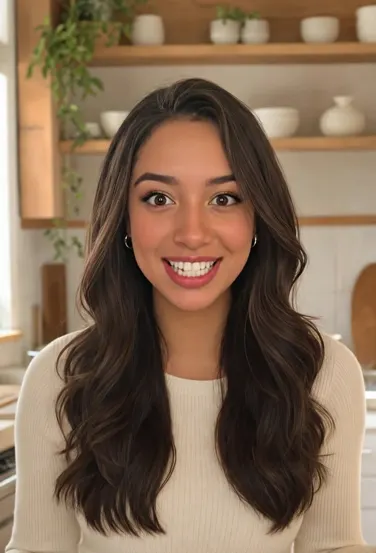
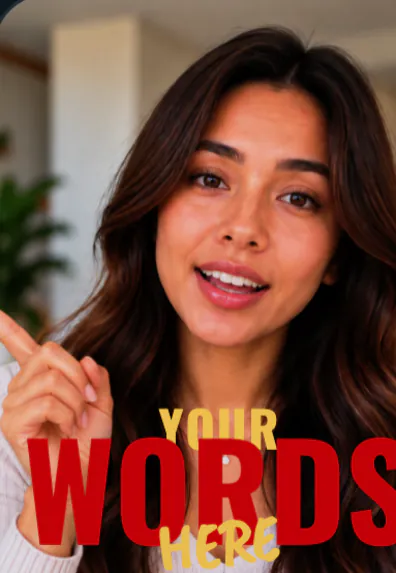
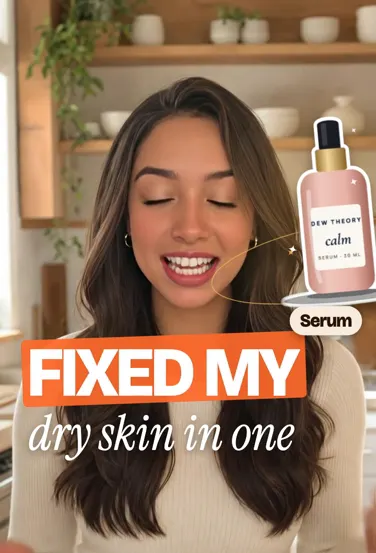
Three things "AI video editing" can mean
- Generating video. Tools that create new footage, avatars or voices from a text prompt. Useful for some ads and illustrations, but the person on screen is not you.
- Automating edits on your footage. Tools that analyze what you filmed and do the slow parts: cut pauses, write captions, pick music, reframe to vertical. Your face and voice stay yours.
- Prompt-based editing. You describe a change in plain words ("zoom in when I say the price") and the editor makes it on your footage, then you keep, undo or adjust it.
SparkRoll is the second and third kind. It edits what you film; it does not generate AI video, avatars or voices.
How to write an edit prompt that works
An AI editor that knows every word you said can act on instructions tied to your speech. A few rules get better results:
- Describe the result, not the steps. "Make the opening feel urgent" works better than listing five settings.
- Anchor to your words. "When I say 'thirty dollars'" is more precise than "around 0:12".
- One change per message at first. It is easier to judge, keep or undo. Combine requests once you know what you like.
- Say what to keep. "Keep the pause before the punchline" protects a moment from automatic cuts.
- Iterate. "Smaller", "less", "more like the first one" are fine follow-ups.
- Cut the pauses and add captions
- Zoom in when I say the price
- Add a hook from my first sentence
- Make the captions bigger
- Use a calmer template
- Take the music down a bit
What to check after an AI edit
AI editing is fast, but you are still the editor. Before you post, check:
- Nothing important was cut. Prices, product names, steps and the call to action should all be there.
- Captions are spelled right. Especially names and numbers.
- The hook is true. It should promise only what the video delivers.
- Text stays off the face and away from the app's buttons.
- It still sounds like you. If the pace feels breathless, loosen the cuts.
It also pays to watch the whole edit once on the phone you will post from, at full screen and with the sound off. Small problems that hide in a preview window, such as a caption under the app's buttons or a zoom that crops your chin, show up immediately at real size. If something is off, describe it the way you would to a human editor ("the zoom at the end is too tight") and let the AI fix it, or fix it by hand.
General chatbots vs a video editor
General AI assistants such as ChatGPT or Gemini are good at scripts, hook ideas and planning a shot list. Editing the video itself works best in a tool built around your footage, one that has already transcribed every word, knows where your face is in each frame, and can show you the result to keep or undo. That is the gap SparkRoll fills: the chat feel of an assistant, with an editor underneath that works on your clip.
How SparkRoll edits video with AI
Add a talking clip on the web, iPhone or Android. SparkRoll hears every word and makes the clean edit first: pauses, "um"s and retakes out. Then you can tap Auto edit for three complete edits to pick from, or start from one of 160 templates, and change anything by saying or typing it.
The edit can include captions in 90 styles, a hook, music and sound effects, B-roll from your own photos, zooms and 300 effects such as Orbit and word behind you. Graphics follow your speech: say a price and it counts up on screen; say a percentage and a ring chart draws it. Every tool also works by hand, so you can tap any caption or sticker to fix it yourself.
 Count-upSay a number, it counts up
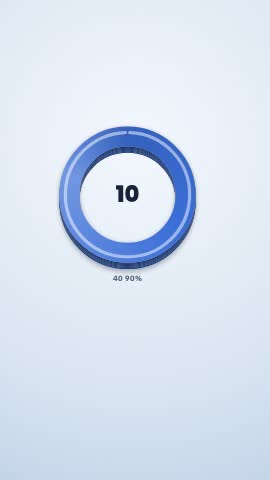 Ring chartSay a percentage, it draws
 Word behind youA big word behind your body
Your footage stays yours: on the web your video is cut in the browser and only the sound goes to SparkRoll to hear the words; on iPhone the video is edited on the phone. For more on the chat itself, see edit video by talking.
Pricing
Try it before you pay: you get 2 videos free to try with AI, with up to 30 AI chat messages each, and your first export in the iPhone or Android app is free with a small SparkRoll mark. After that, exporting needs a plan. Coins pay for AI messages; editing by hand is free.
2 videos to try with AI, 30 AI messages each. First export free in the iPhone and Android apps, with a small mark.
250 coins a week. Export your videos. Cancel any week.
1,000 coins a month. Export. Top up with coin packs.
3,000 coins a month, the stronger AI, +20% on coin packs.
Prices in US dollars, + tax where applicable. Coin packs for plan holders: 300 coins $3.99 · 1,000 coins $9.99.
Questions, answered
Can I edit video with AI for free?
SparkRoll gives you 2 videos free to try with AI, with up to 30 AI chat messages each, and your first export in the iPhone or Android app is free with a small SparkRoll mark. After that, exporting needs a plan. Editing by hand is free.
Can I edit a video with an AI prompt?
Yes. Type or say what you want, such as "zoom in when I say the price" or "make the captions bigger", and SparkRoll makes the change on your footage.
Does SparkRoll generate AI video or avatars?
No. It edits the video you filmed. It does not generate video, avatars or voices, and it does not translate or dub.
Can I edit video with AI online?
Yes. Open sparkroll.app in any modern browser, on a computer or a phone. There is also an iPhone app and an Android app.
Can I undo an AI edit?
Yes. Each change is yours to keep or undo, and you can always fix a caption or sticker by hand.
Related
- Edit video by talkingA chat video editor: say the edit
- AI video editorChat-based editing for talking videos
- Free AI video editor2 videos free to try with AI
- Auto captionsCaptions on every word, automatically
- Video hook generatorThree openers from your own words
- Video templatesTemplates that set the whole look
- UGC video editorEdits for creator ads
- VEED alternativeChat editing vs a browser timeline
Say the edit. Keep the footage.
Upload a talking clip and tell SparkRoll what you want. 2 videos free to try.