
How to add captions to Instagram Reels
Instagram gives you a Captions sticker that transcribes your voice, and it can also show auto-generated captions to viewers. You can also burn styled captions into the video before you upload. This guide covers all three, step by step.
2 videos free to try with AI · Works in your browser · Also on iPhone and Android
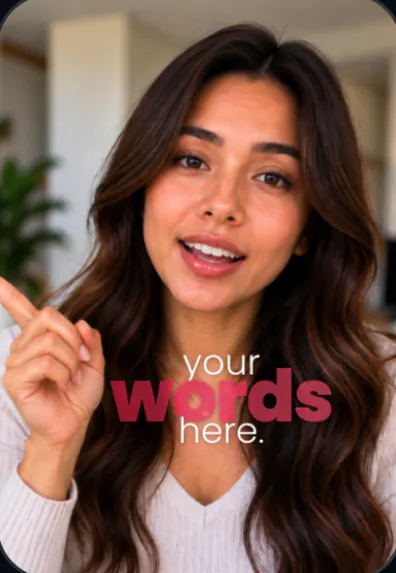
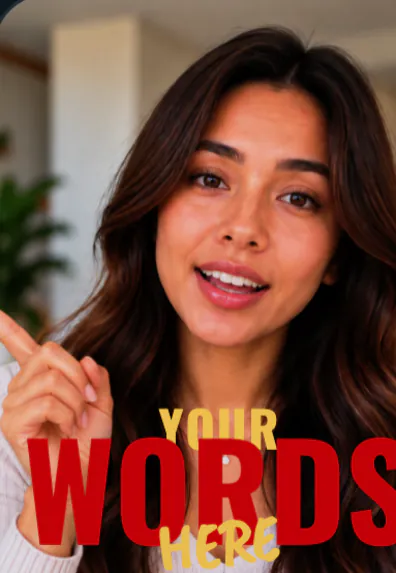
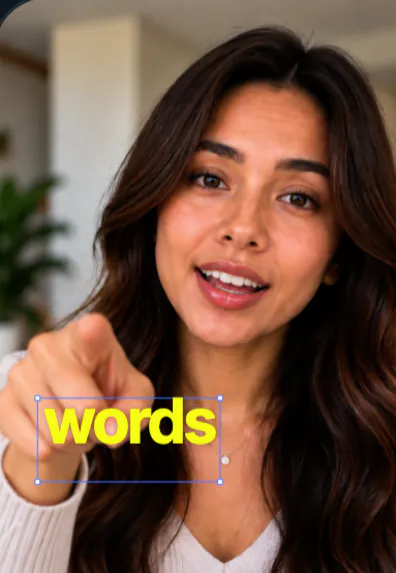
Two kinds of captions on Instagram
When you add captions to Instagram Reels, you are choosing between captions that are part of the picture and captions that viewers switch on.
- On-screen captions (the Captions sticker, typed text, or captions burned in by an editing app) are always visible. Everyone sees them, sound on or off.
- Auto-generated captions are created by Instagram and shown only to people who have captions turned on in their settings. You don’t design them, and many viewers never see them.
Because Reels autoplay in the feed, often muted, most creators want on-screen captions. They tell a scrolling viewer what the video is about before they decide to tap for sound. Turning on auto-generated captions as well is still worth it for accessibility, as long as you are not burning in captions at the same time.
Method 1: The Captions sticker
The Captions sticker is free, built into the Instagram app and works for both Reels and Stories. Menus change between app versions, so if a name differs slightly on your phone, look for the same option among the stickers.
- Start a Reel. Tap + and choose Reel. Record your clip or pick a video from your gallery, then go to the editing screen.
- Add the Captions sticker. Tap the sticker icon at the top and choose Captions. Instagram listens to the audio and turns your speech into on-screen text.
- Pick a style and color. Tap through the caption styles at the bottom of the screen and choose a color that stands out against your background.
- Fix the words. Tap the caption text to edit it. Correct names, products, numbers and slang that the transcript got wrong.
- Place it and share. Drag the caption block into the middle of the frame, away from your face and the bottom of the screen, pinch to resize, then tap Next and share.
The sticker shows a few words at a time and follows your voice. Its weakness is choice: there are only a handful of styles, and you can’t highlight a single word in a different color.
Method 2: Auto-generated captions for viewers
Instagram can create captions for a Reel automatically and show them to people who have captions turned on. Viewers manage this in their own settings, and creators will find caption options in the advanced settings shown before sharing. These captions cost you nothing and help people who rely on them, but you don’t control their look or position, so think of them as an accessibility layer, not your main on-screen text.
Method 3: Burn captions in with an editor
If you post the same video to Reels, TikTok and YouTube Shorts, caption it once in an editing app and upload the finished file everywhere. Meta’s own Edits app, CapCut and SparkRoll can all create captions from your audio. The advantage is style: larger text, a key word in color, animation, and the exact same look on every platform. The trade-off is that you can’t change the words after upload, so read them carefully before you export.
Where captions should sit on a Reel
A Reel is 9:16, 1080 × 1920 pixels. Instagram lays several things over it, and the profile grid shows a cropped preview, so the safest place for words is the middle of the frame.
- Bottom: your username, the post caption and the audio name cover roughly the lowest fifth. Keep captions above it.
- Right side: like, comment, share and the audio button run down the right edge.
- Grid crop: on your profile, Reels show as a cropped thumbnail. A hook placed near the center survives the crop; one at the very top often doesn’t.
- Your face: chest height works well for talking videos. Never run text across your eyes or mouth.
Tips for captions people actually read
- Short chunks. Two to four words per screen keeps up with natural speech.
- Contrast first. White text with a dark outline, or dark text on a light box, works on any background.
- One emphasis color. Color the word that carries the point, like “free”, “3 steps” or “$20”, and leave the rest plain.
- Same style all video. Switching fonts mid-Reel distracts from what you are saying.
- Clean the audio first. Captions on a take full of pauses and false starts look jumpy. Cut the dead air before you caption (our jump cut guide explains how).
Common mistakes
- Stacking the Captions sticker on top of captions that are already burned into the video.
- Leaving the sticker at its default spot and size without checking it against the bottom text.
- Trusting the transcript without reading it. Brand names and numbers are where mistakes hide.
- Using hashtags or the post caption to explain the video instead of putting the point on screen.
How SparkRoll captions a Reel
SparkRoll is an AI video editor for talking videos that runs in your browser and on iPhone and Android. It writes captions from your own words, keeps them off your face, and lets you change them by asking.
- Upload your clip. The clean edit removes pauses, filler words and retakes, so the captions follow tight speech.
- Choose a look from 90 caption styles, or a template such as Fly-In or Dark Studio Word that brings its own captions.
- Ask for changes. “Move the captions up”, “bigger key words”, “use two words at a time”. Or tap a caption to edit it by hand.
- Export a vertical 9:16 file and share it to Instagram, and the same file to TikTok and Shorts.
Try it on 2 videos free with AI. Your first export in the iPhone or Android app is free with a small SparkRoll mark; after that, exporting needs a plan. See the Reels video editor page for the full feature list, or auto captions for the caption looks.
Questions, answered
How do I add captions to Instagram Reels automatically?
In the Reels editor, tap the sticker icon and choose Captions. Instagram transcribes your speech; pick a style, fix any wrong words and drag it into place.
Why is the Captions sticker missing?
Update Instagram and check the full sticker list, including the search box. The sticker needs speech in a supported language. If it still isn’t there, caption the video in an editing app before uploading.
Can I edit captions after posting a Reel?
On-screen captions are part of the video, so changing them means posting the video again. You can still edit the written post caption after posting.
How do I add captions to Instagram stories?
Stories use the same Captions sticker: open the sticker tray, choose Captions, then style and place it the same way as on a Reel.
Should I use the sticker or burned-in captions?
Use the sticker for quick, Instagram-only posts. Burn captions in with an editor when you want a bolder style or post the same video on several platforms.
Keep reading
Ready to edit by talking?
Upload a clip, say what you want, and get a finished edit. 2 videos free to try.
Get the app: App Store · Google Play